Remove furniture from a photo with AI — see the room empty
Upload a photo and see the room with the furniture gone.
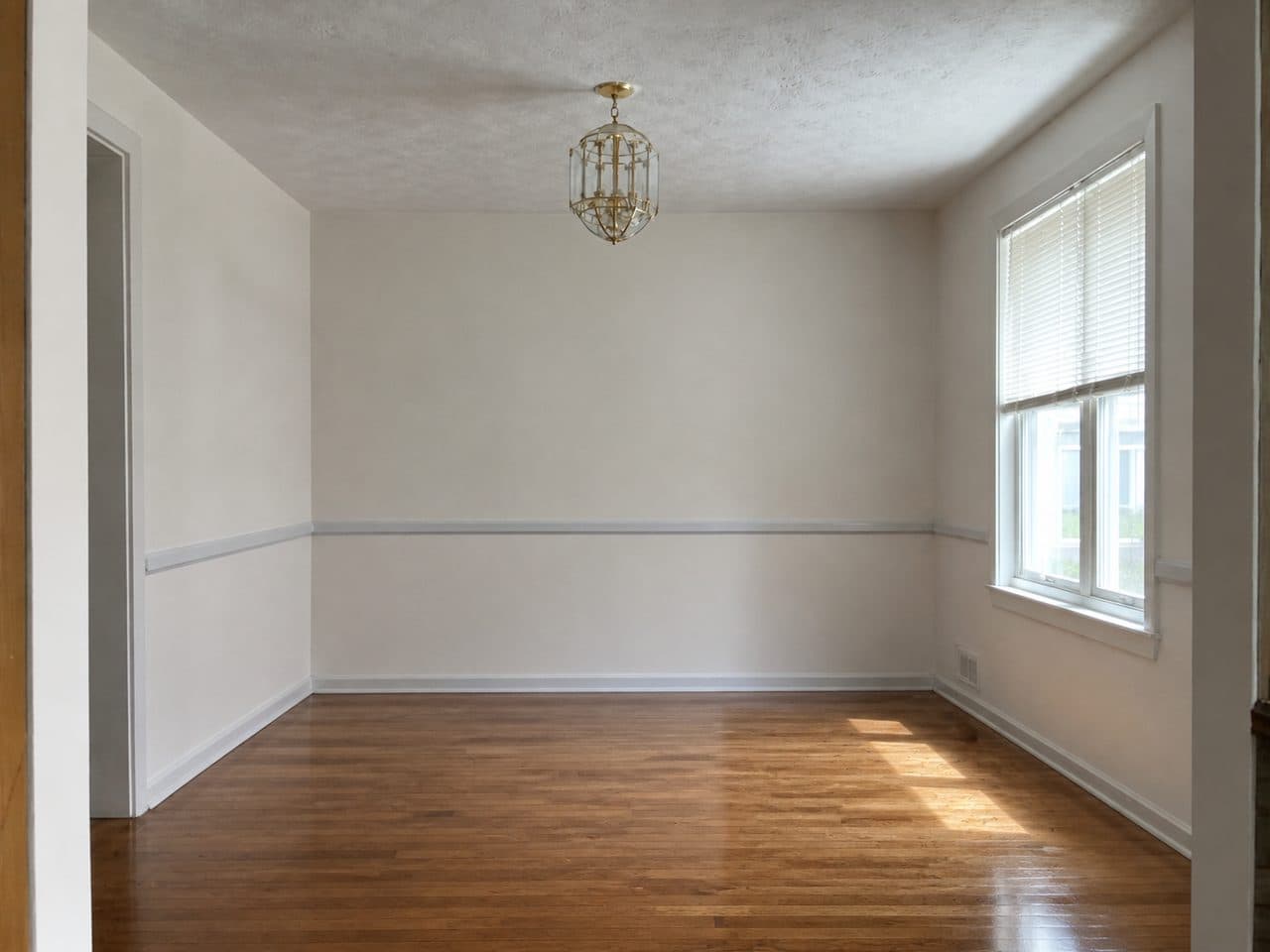
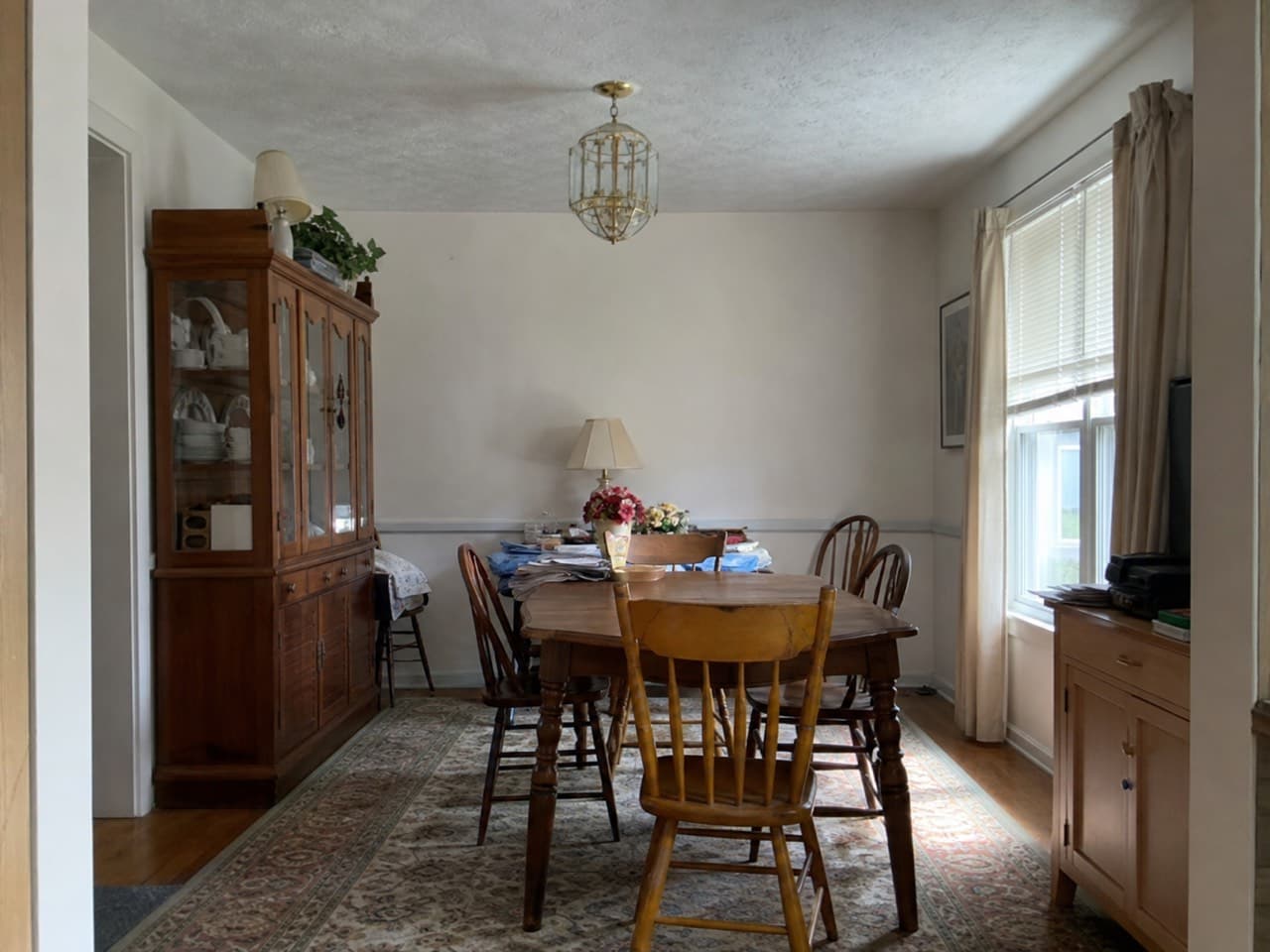 Empty
EmptyUpload a photo of your room on the left to see it in a new style.Upload a photo of your room above to see it in a new style.
Any roomRemove furniture
Try it free with a photo of your room, no card needed.
Remove Furniture From a Photo
Roomvana's AI furniture remover takes a photo of a furnished, lived-in room and gives you back the same room empty — sofas, tables, rugs, lamps and everyday clutter gone, while the walls, floors, windows and built-in fixtures stay exactly as they are. It's the cleanest way to see what the space looks like empty before you stage it, sell it, or plan a new layout from a blank slate. Free to try, no card needed.
Explore other spaces
Browse all spaces
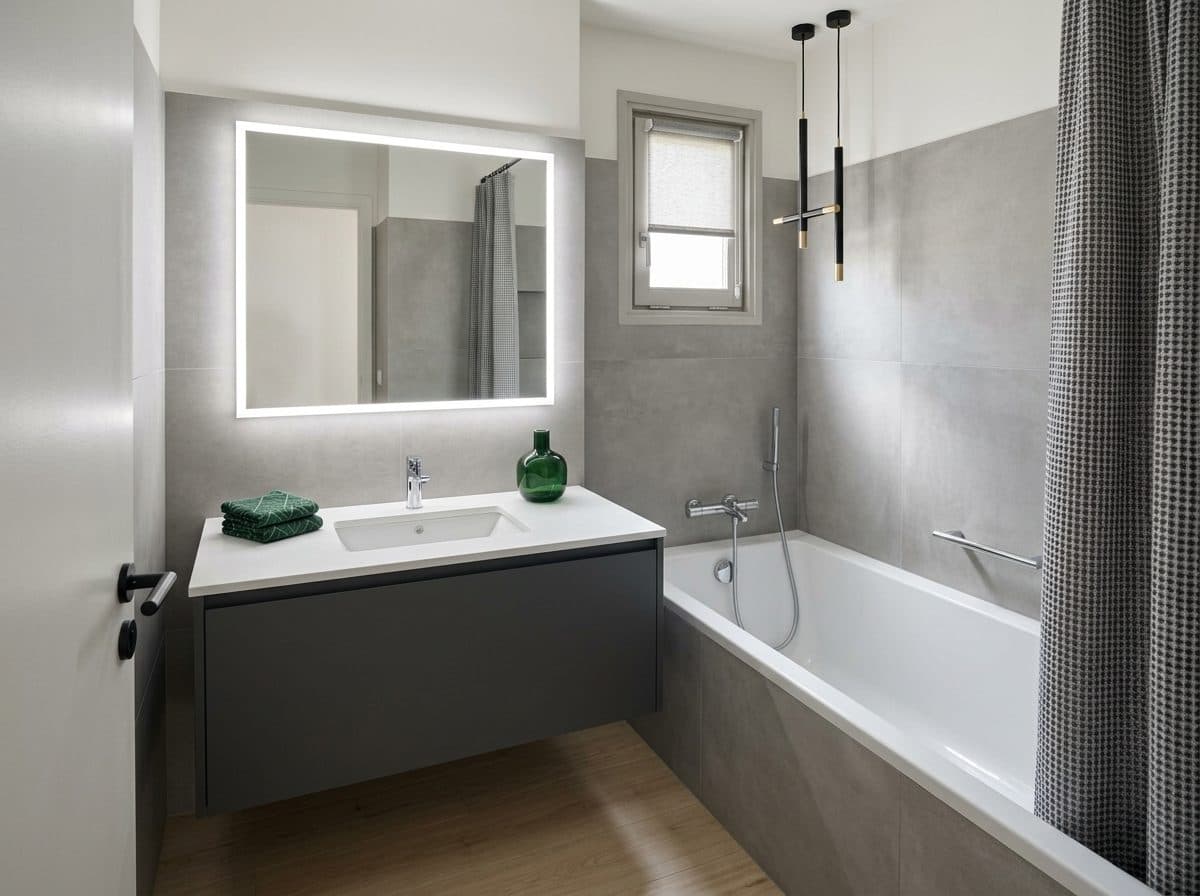
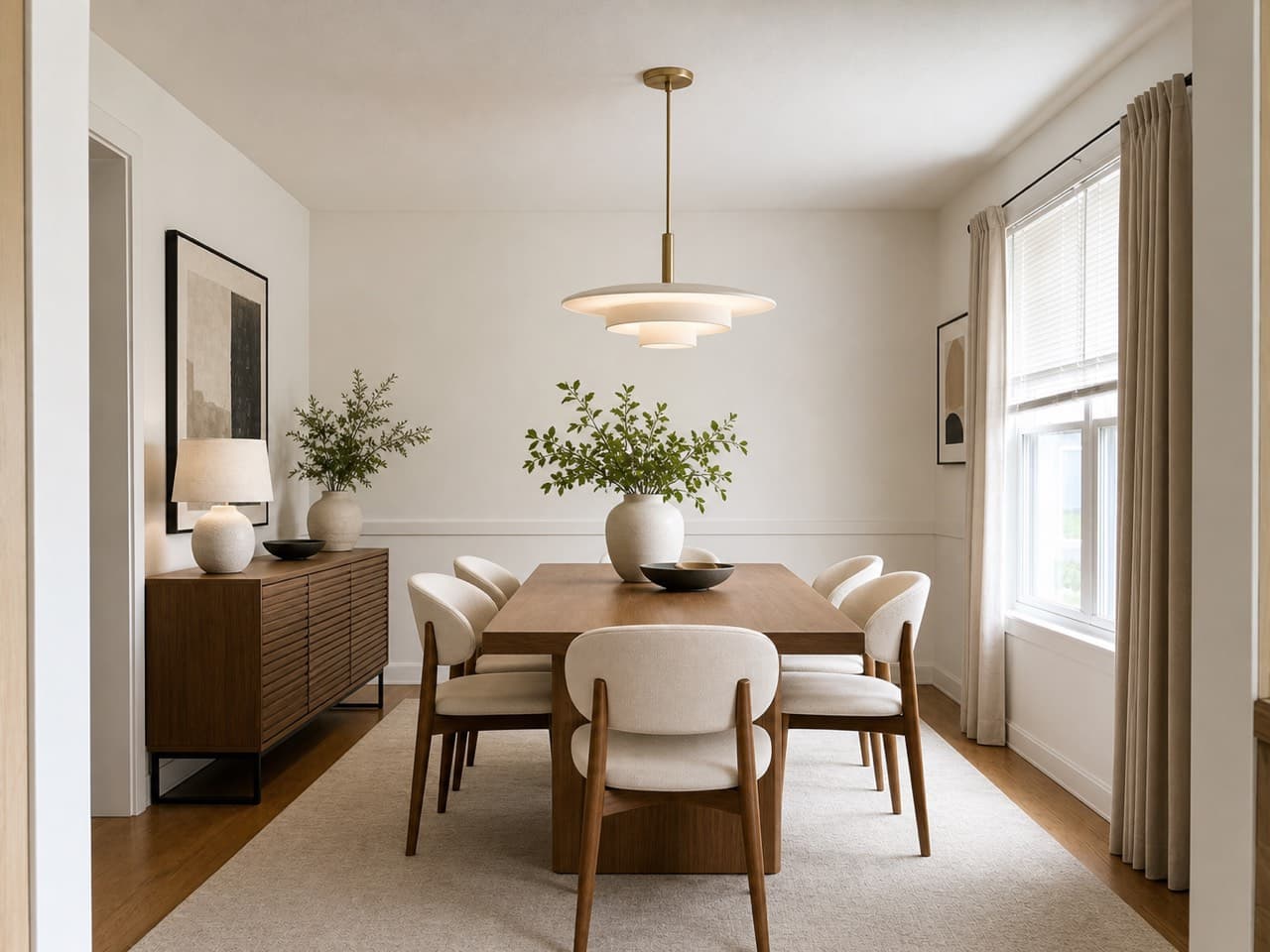
How to empty your room with AI
- 01
Upload a photo of the room
Take or upload a clear photo of the furnished room. A straight-on shot in daylight that shows the floor and the full height of the walls gives the cleanest empty result.
- 02
Choose Remove furniture
This page opens the studio in Remove furniture mode, which focuses on one job: clearing the room so you can start from an empty version of the same space.
- 03
Generate the empty room
Roomvana removes the furniture, rugs, lamps and clutter and fills in the floor and walls behind them, while keeping your layout, walls, windows and fixtures.
- 04
Use the empty room
Slide between furnished and empty, download the result, or go straight to virtual staging to furnish the cleared room in a style of your choice.
What the AI can change
It restyles
- Sofas, chairs & tables
- Beds, dressers & nightstands
- Rugs & loose floor coverings
- Lamps, art & shelves
- Curtains & window styling
- Plants & decor
- Boxes, piles & everyday clutter
It never touches
- The walls & paint
- Flooring
- Windows, doors & trim
- Ceiling lights & built-in fixtures
- The room's size & camera angle
Frequently asked questions
What does the AI furniture remover do?
+
It takes a photo of a furnished room and returns the same room empty. The AI removes sofas, tables, beds, rugs, lamps, art and clutter, then reconstructs the floor and walls that were hidden behind them. The AI keeps your layout, walls, flooring, windows, doors and built-in fixtures.
Is it free to remove furniture from a photo?
+
Yes — try it free with a photo of your room, no credit card needed. After that, a one-time credit pack (from $14.99 for 30 designs) removes the watermark and unlocks custom instructions and commercial use. No subscription, and credits never expire.
Why would I want an empty room photo?
+
Three common reasons. Sellers and agents use it to clear a lived-in listing before virtual staging, so buyers see clean, neutral rooms. Renovators use it to plan a new layout without the old furniture in the way. And anyone moving in or redecorating uses it to see the space they're actually working with — the real floor, wall lengths and window positions — before choosing anything new.
Can I stage the room after emptying it?
+
Yes, in one step. After the empty room is generated, choose Stage this empty room and the AI furnishes it in the style you pick — modern, coastal, farmhouse, Scandinavian and more. Remove, then stage, is the standard way to turn a lived-in listing photo into a clean staged one.
Does it keep the walls, floors and windows exactly as they are?
+
Yes. Remove furniture keeps your layout, walls, flooring, windows, doors, trim and ceiling fixtures — it changes only the loose contents of the room, and the AI fills in the surfaces the furniture was hiding to match what's around them. The room's size and the camera angle don't change.
Does it remove built-in things like cabinets or a fireplace?
+
No. Built-in cabinetry, radiators, fireplaces, ceiling lights and other fixed parts of the room are treated as part of the room and left alone. Only loose furniture, rugs, lamps, decor and clutter are removed. If you want to change a built-in element, use Change one area and describe it instead.
What photo works best?
+
A well-lit, straight-on photo taken from a doorway or corner, with the floor and the full height of the walls in view. Good daylight helps the AI reconstruct the surfaces behind the furniture. For the cleanest result, use a bright, level photo and avoid heavy shadows or extreme wide-angle shots when you can.
How is this different from Redesign or Virtual staging?
+
Redesign restyles a furnished room — it swaps the existing furniture and finishes for a new look. Virtual staging starts from an empty room and adds furniture. Remove furniture is the step in between: it takes furniture away and gives you the empty room, either as the end result or as the clean starting point for staging.
Can I use the empty photo in a real-estate listing?
+
Yes, and many agents do, usually as the first step before virtual staging. Any credit pack includes commercial usage rights. Most MLSs require digitally altered photos to be labeled — for example as virtually staged or digitally edited — so check your local rules and label the image. Never use editing to hide a defect or misrepresent the property.
Can I download the empty room in 4K?
+
Yes. With any credit pack, one credit upscales a result to 4K — sharp enough for listing sites, print flyers and floor-plan work — and every download is watermark-free.
What happens to my photos?
+
Your photos stay private and are never used to train AI models. They're stored only so you can revisit your results, and you can delete them any time from your gallery or by deleting your account.